Note: Recently I wrote a series development bootstrap documents for our new Java project using Eclipse as primary development tool. Maybe useful to others.
Introduction
Git is a distributed version control system designed to handle everything from small to very large projects with speed and efficiency.
Comparing to other version control systems that you may have used, the main difference is that Git doesn’t have a central repository. Every Git clone is a full-fledged repository with complete history and full revision tracking capabilities. Use git pull and git push commands to synchronize your local repository with any remote repository.
For typical corporate development use of the git, the release engineering’s repository is elected to be the central repository that everybody pulls from and eventually pushes to.
Installation
There are many different Git clients for each type of operating system platform. We’ll cover three major free tools.
- Official Git command line utility
- Eclipse plugin – Egit
- TortoiseGit – Windows Explorer integrated Git graphical interface.
Git command line utility
The official Git command line utility can be downloaded from below locations. Please download and install the latest version - 1.7.9 at the time of writing.
Windows binary: http://code.google.com/p/msysgit/downloads/list?can=3
Mac OSX binary: http://code.google.com/p/git-osx-installer/downloads/list?can=3
Linux: use one of below for your favorite distribution:
sudo apt-get install git-core
or
sudo yum install git-core
For Windows installation, please take default option except in one screen below.

Eclipse plugin – EGit
Please refer to the Git Integration (EGit) section of Eclipse and Common Plugin Installation page.
TortoiseGit
You must install the Git command line utility first before you can install TortoiseGit. Download the Git from http://code.google.com/p/tortoisegit/downloads/list. Get the latest version, 1.7.6.0 at the time of writing, for your operating system's bit version.
Run the installer and take the default until you get to the screen below:

If you don’t have TortoiseSvn installed, or you plan to use ToroiseGit more than ToroiseSvn, then make no change and take the default all the way to finish install. Otherwise, disable “Register diff/patch files” option and complete the installation.
 |
Tip: If you use TortoiseGit, you should seriously consider JiraSVN. It adds Jira ticket column to the revision log screen; make ticket IDs in comments hyperlinks; warn you when ticket number is missing in commit comment; and let you search Jira ticket right in the commit dialog. |
Configuration
Determine Home Folder on Windows
Git saves configuration information in user’s home directory. In Windows, the home folder is determined as below.
If HOME environment variable exists, value of the HOME environment variable is used as home folder, i.e. %HOME%. Otherwise, the home folder is defined by HOMEPATH environment variable on the drive defined by HOMEDRIVE, i.e. %HOMEDRIVE%%HOMEPATH%.
Save Password
To avoid typing your password again and again, it is a good idea to save your Git password in netrc file. Both command line utility and TortoiseGit reads username and password from netrc file.
For Unix, Linux and OSX, the file is named .netrc and located in your home directory, which is defined by the HOME environment variable. Depends on the type of shell you use, you should be able to access via
~/.netrc
Or
$HOME/.netrc
For Windows, the file is named _netrc and located in your home folder (see previous section for the definition of the home folder in Windows). You can access the file via
%HOME%\_netrc
Or if HOME environment is not defined, use
%HOMEDRIVE%%HOMEPATH%\_netrc
To save your password for a remote repository , add a line like below to netrc file.
machine git.yoursite.com login yourusername password yourgitpassword
EOL Handling
The test practice for end of line (EOL) character handling for text file is to follow below recommendation:
For Unix, Linux, OSX or OS those native line ending being LF
core.autocrlf=input
core.safecrlf=true
For Windows and OS those native line ending being CRLF
core.autocrlf=true
core.safecrlf=true
Please refer to next section for instructions of change those values.
Change Configuration
Basic configuration includes user name, email and EOL handling. You can follow any one of below method to change the configuration.
 |
Warning
EOL handling configuration used in the following subsections are examples for Windows platform. Please substitute with the right values for your OS platform that were discussed in the EOL Handling section. |
Edit .gitconfig file
Open or create .gitconfig file in your home directory (Windows user see ..) and add (or edit) below line to the file.
[user]
        name = Your Name
        email = youremail@domain.com
[core]
       autocrlf = true
       safecrlf = true
Using command line utility
Run below commands:
git config --global user.name "Your Name"
git config --global user.email youremail@domain.com
git config --global core.autocrlf true # true for CRLF native EOL, input for LF native EOL
git config --global core.safecrlf true
Use below commands to check the current values
git config --global --get user.name
git config --global --get user.email
git config --global --get core.autocrlf
git config --global --get core.safecrlf
EGit
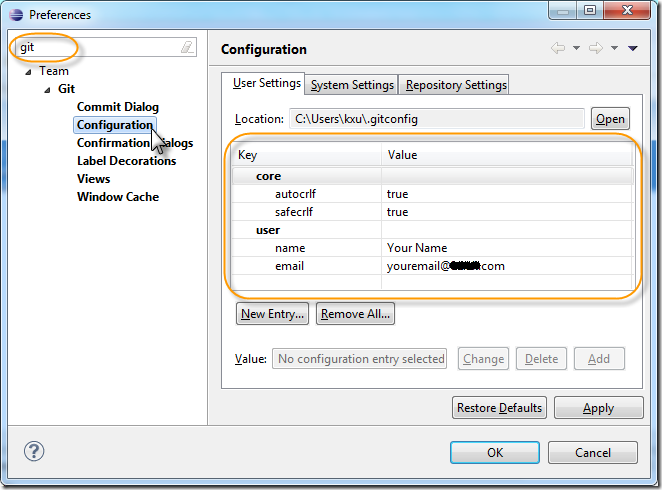
Please refer to Configuration section of EGit Bootstrap page.
TortoiseGit
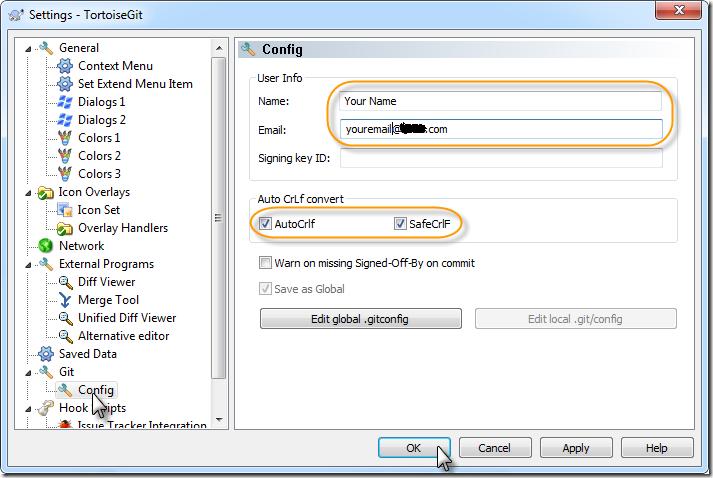
Right click on any folder in Windows Explorer. Select context menu TortoiseGit->Settings

Select Git->Config and enter the value according to the screenshot below:
Clone Repository
Command line utility
Change your current directory to where you want your cloned repository and issue below command.
git clone http://git.yoursite.com/Project1.git
This will create a Project1 sub directory that contains cloned repository.
EGit
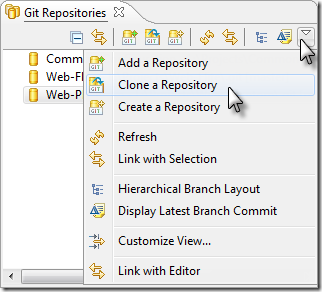
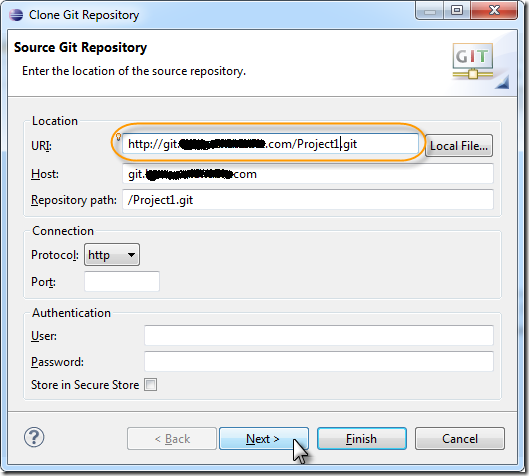
Please refer to Clone Repository section of EGit Bootstrap page.
TortoiseGit
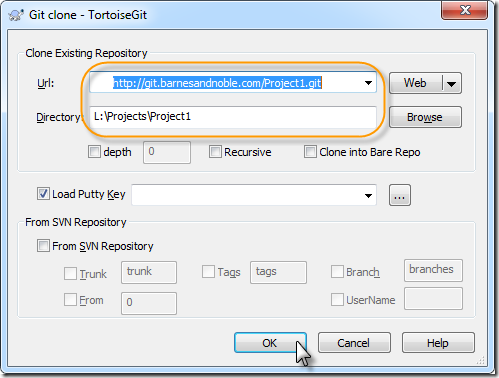
In Windows Explorer, right click on the folder you want your cloned repository to be located. Select "Git clone..." context menu item. Enter the repository Url and click "OK" button.
Further Reading
- Git Tutorial, it also come with Git command line utility, just type:
git help tutorial